¶ Overview
The main steps are:
- Step 1: Add a new employee
- Step 2: Assign the administrative rights to the employee
- Step 3: Assign the proper licenses to the employee
¶ Step 1: Add a new employee
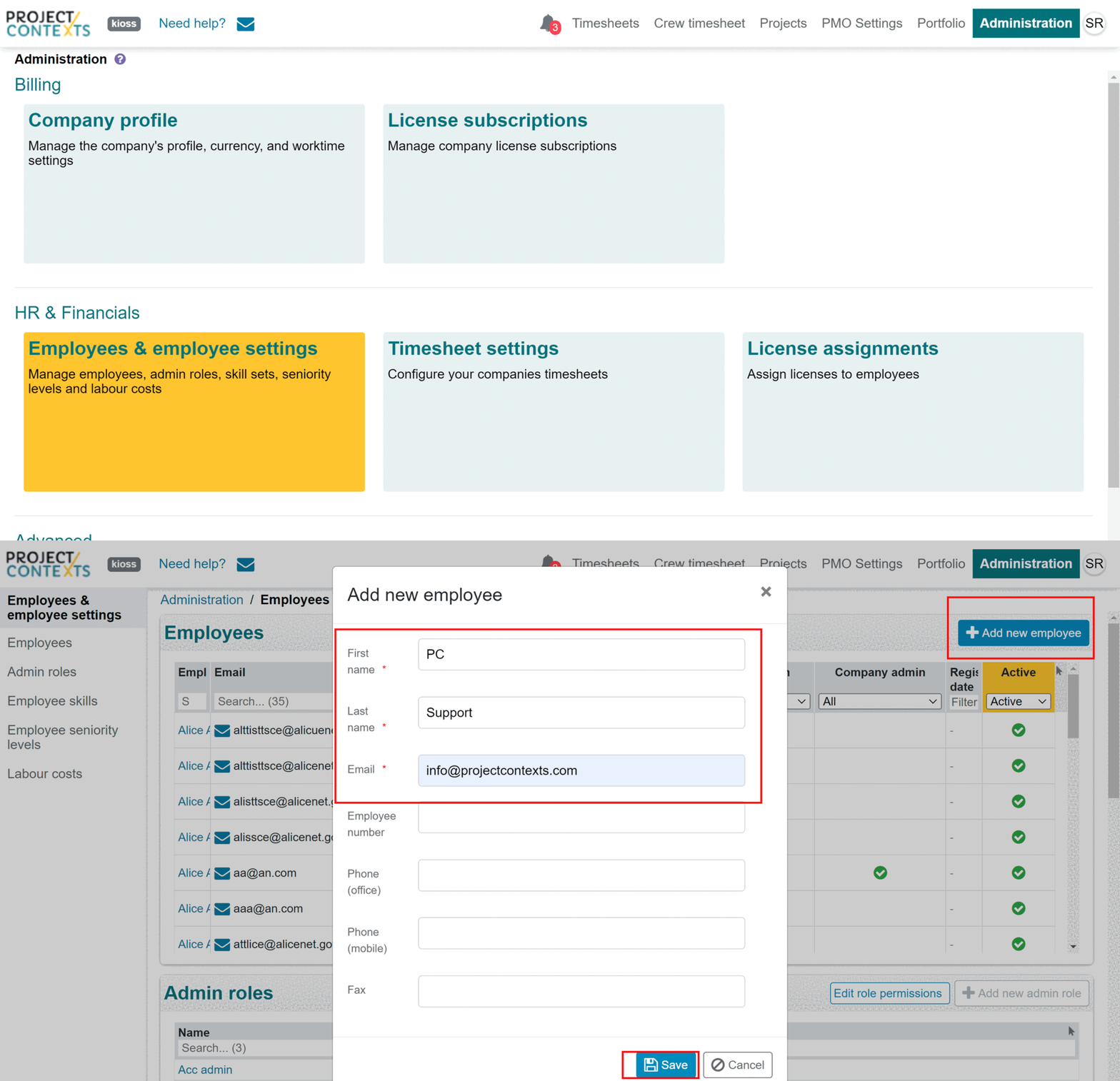
- Go to 'Administration > Employees & employee settings'
- Click on 'Add new employee' button and fill in the form and save
¶ Step 2: Assign the administrative rights to the employee
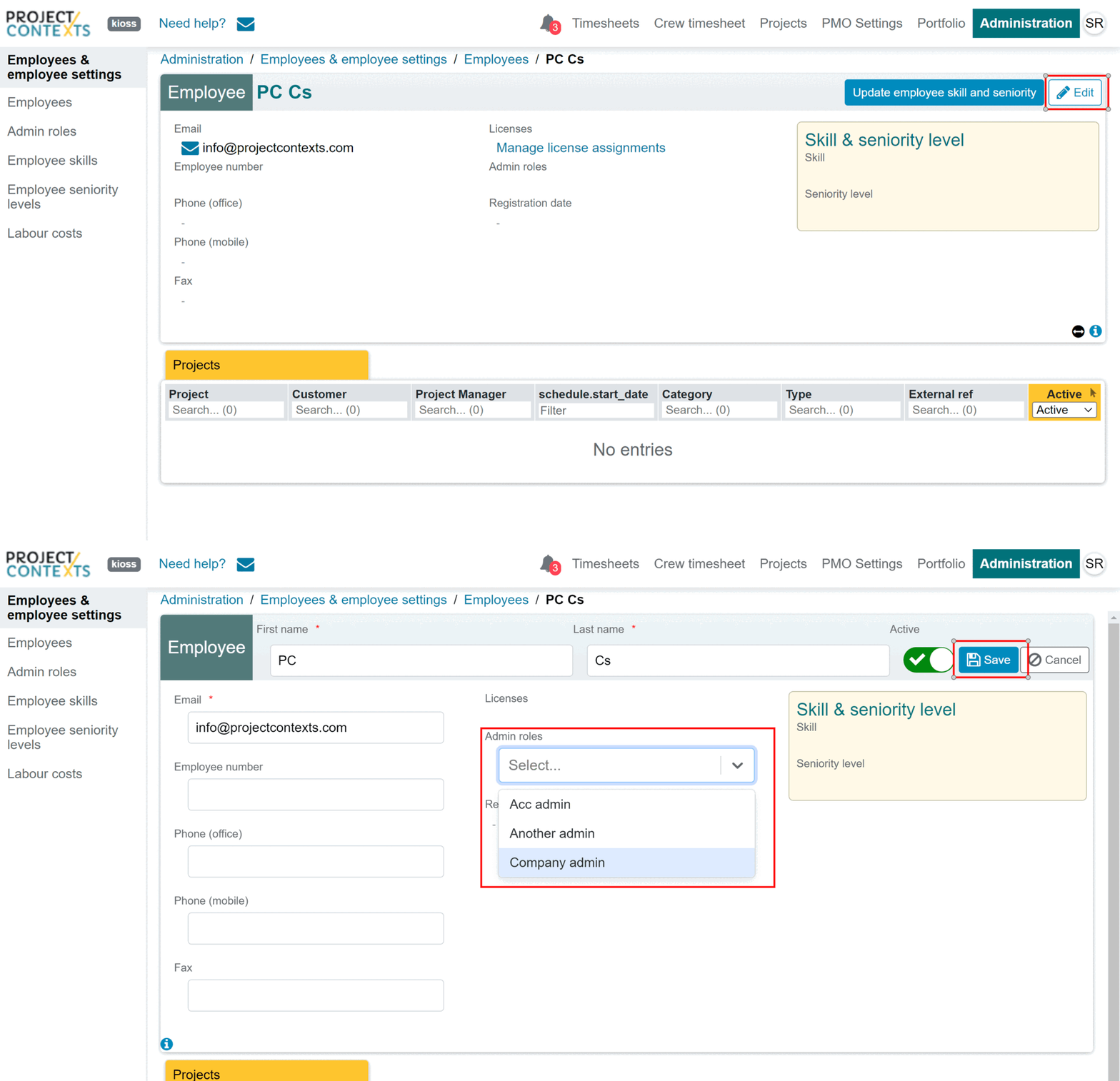
- Open the employee data sheet
- Click the Edit button to enter the edit mode
- Select Company admin for the Admin roles field
- Click Save
¶ Step 3: Assign the proper licenses to the employee
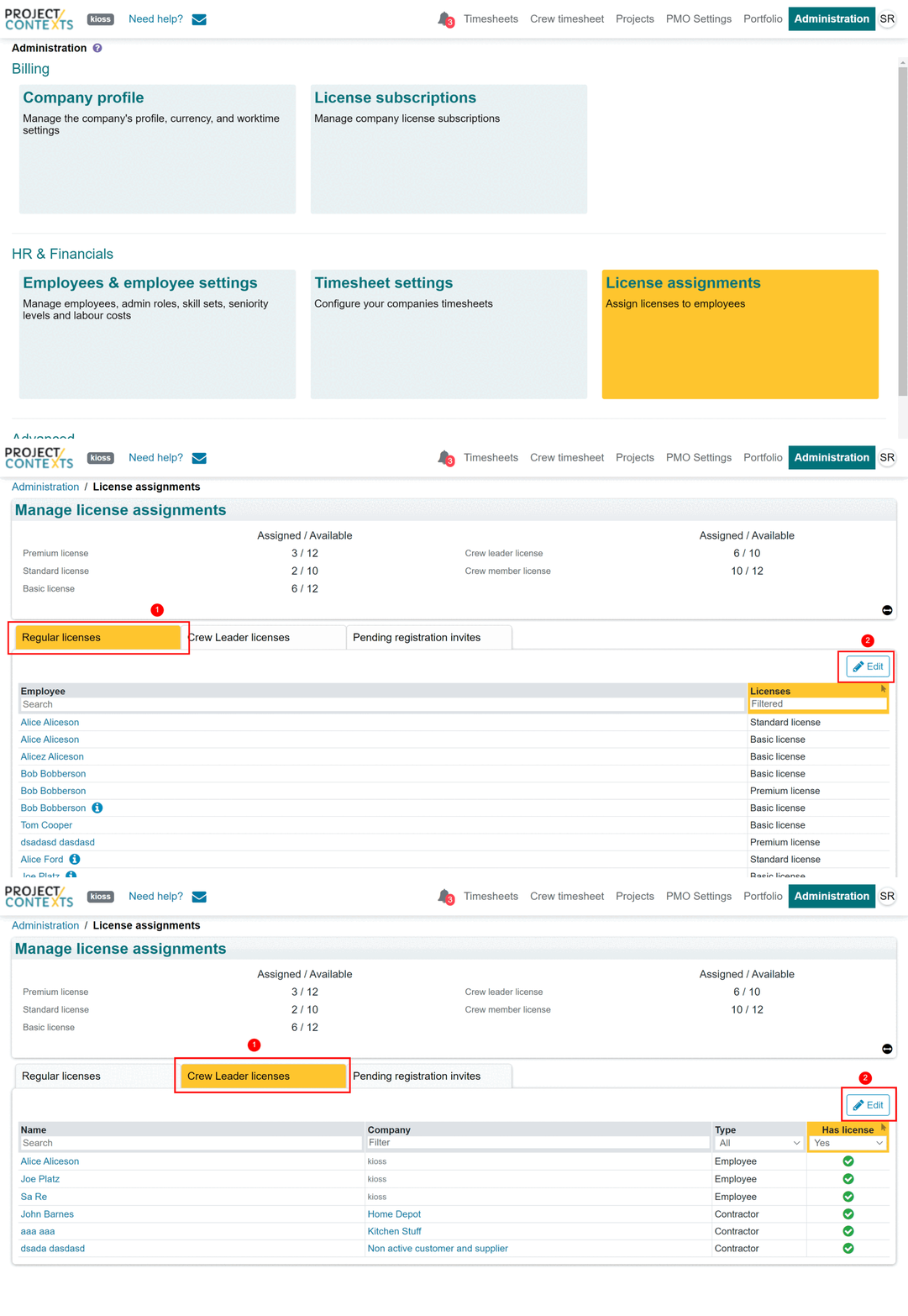
- Go to Administration > License assignments
- To assign Regular licences, go to the 'Regular licenses' tab and click the edit button
- To assign Crew Leader licenses, go to the ‘Crew leader license’ tab and click the edit button
¶ Step 4: Manage the invites sent to licensees
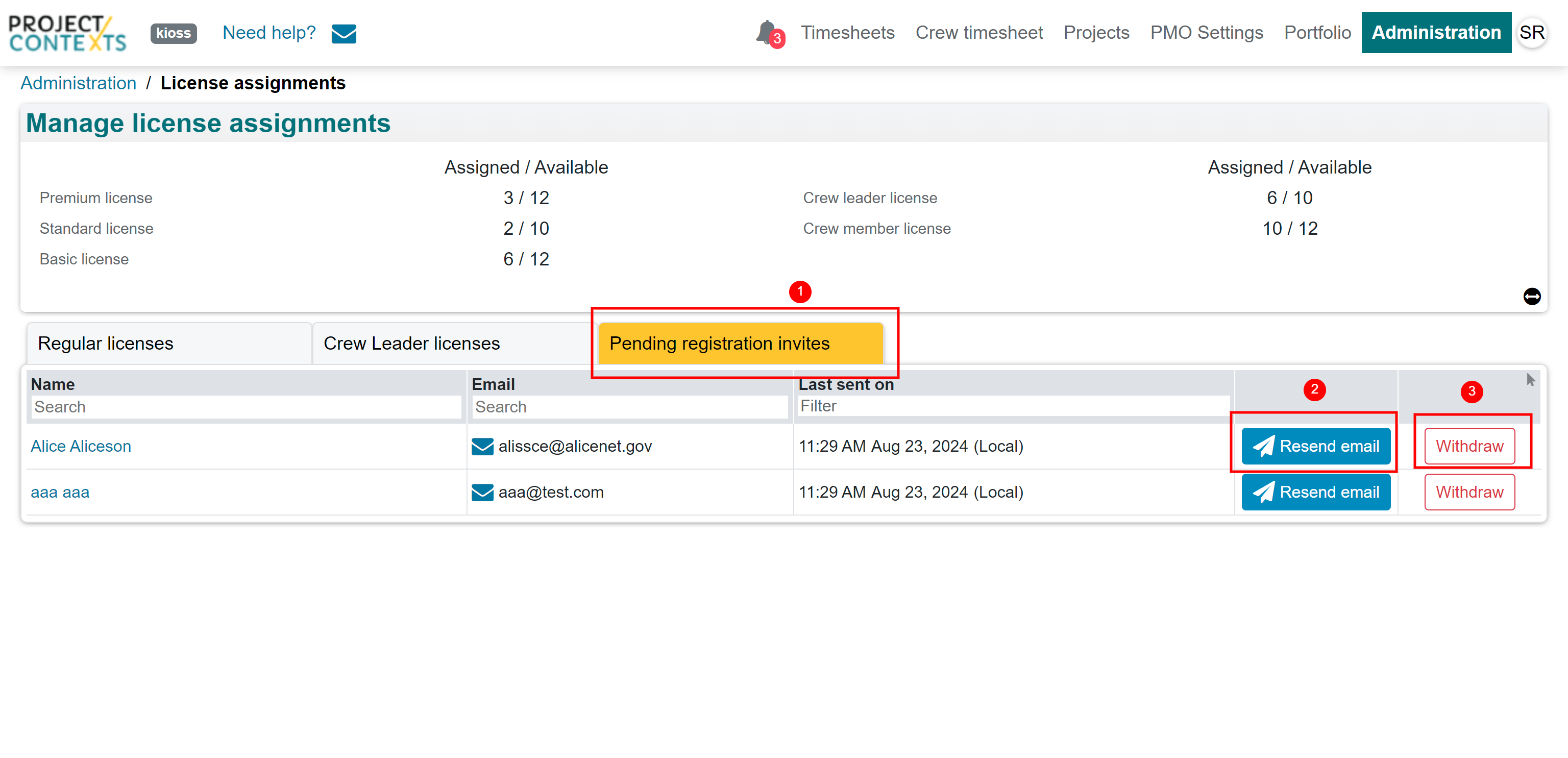
- Each time an employee is assigned a license, that employee receives an email with a registration link to create their account on ProjectContexts
- You can view and manage the registration invites in the corresponding tab in the license assignments section
- Once an employee clicks on the registration link and create their account, the invites disappear from the Pending registration invite tab
- As long as the employee has not registered their account, you can either:
- Resend the email containing the registration link
- Withdraw the invite; in which case that employee would no longer be able to register an account