¶ Contracts Overview
Also refer to Planning Systems and Contracts
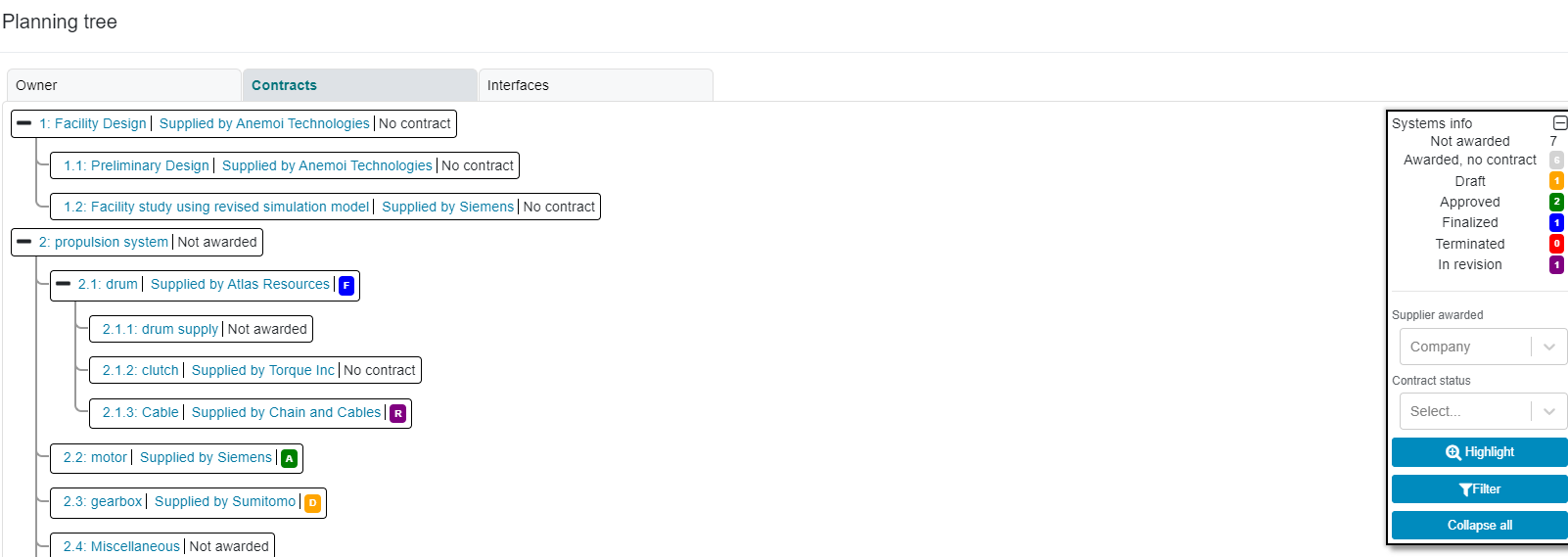
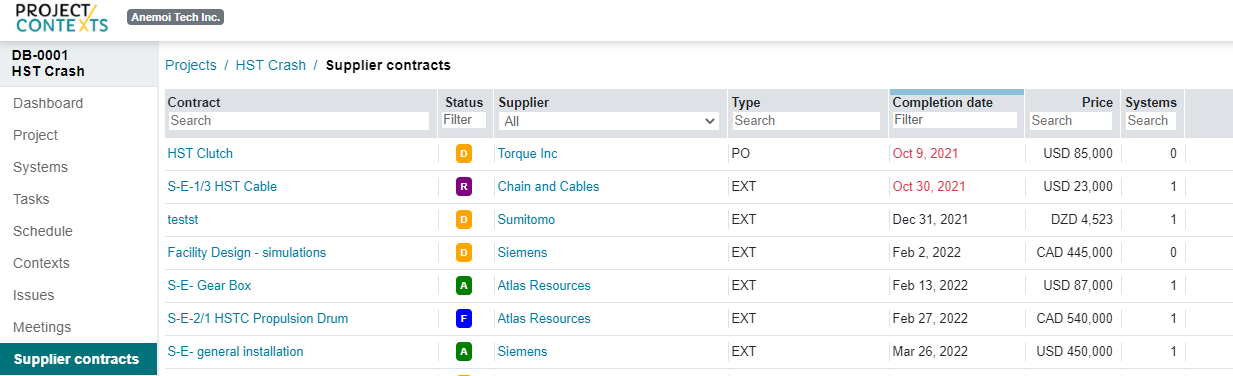
The Planning Tree/Contracts provides an overview of the status of each supplier contract
¶ Add Contract
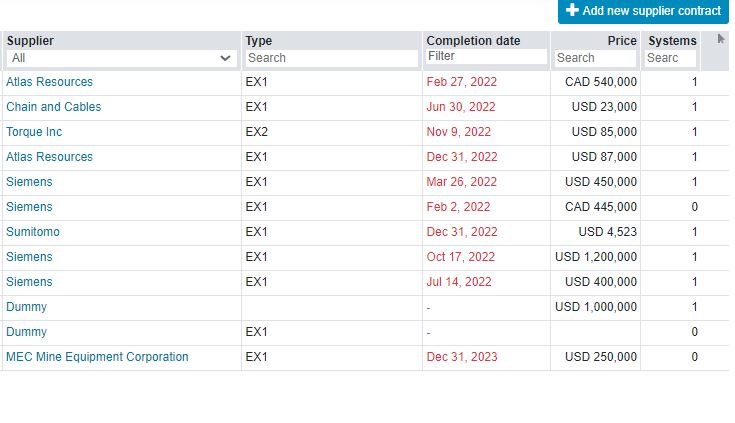
click “add new supplier contract” at the top right hand corner of the contracts list
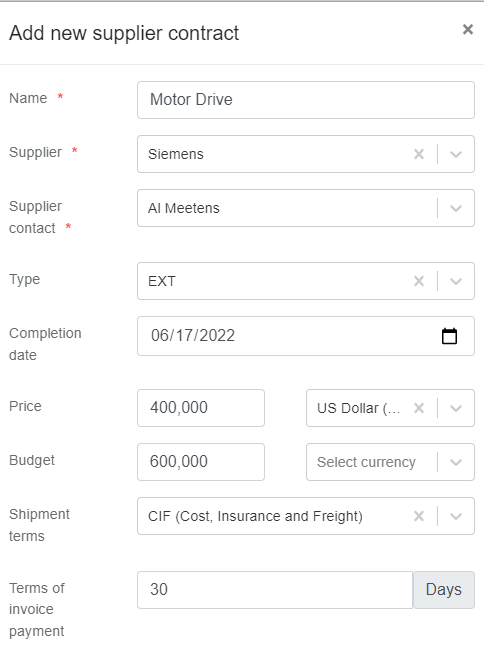
The pop up results in a new contract page with 3 tabs:
¶ Select systems to be included in the contract
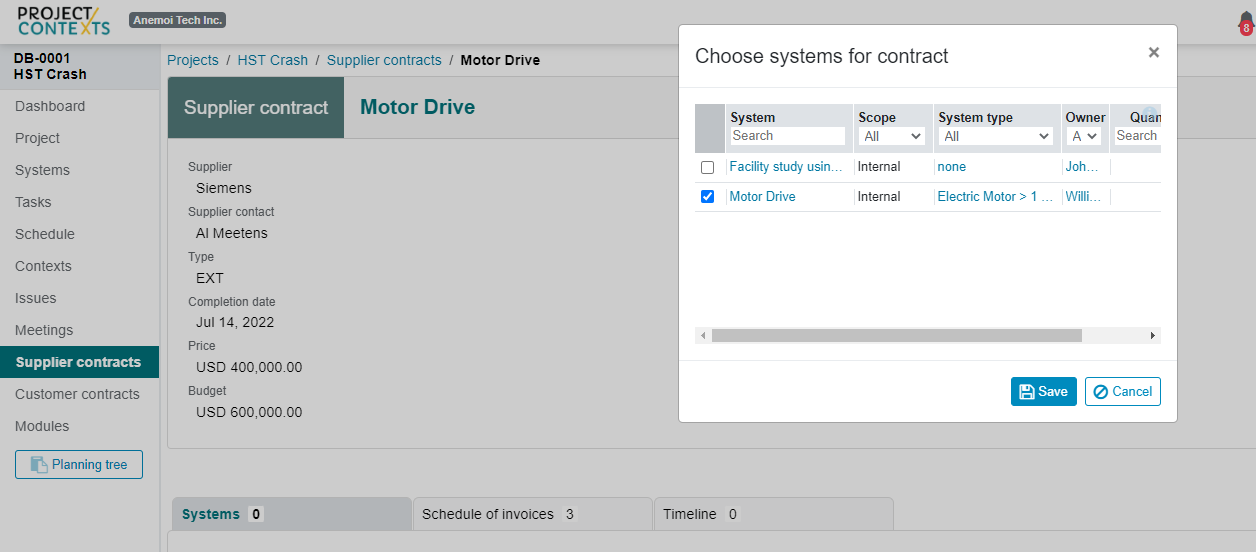
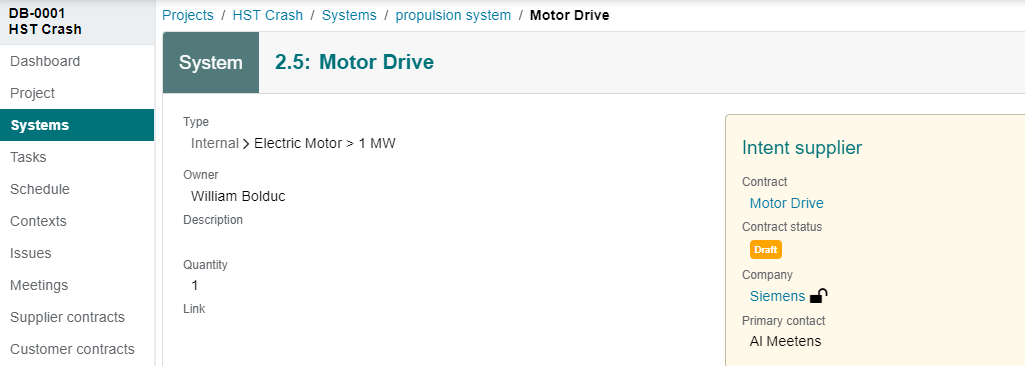
To select the systems for this contract, click on the “edit” button for the systems tab
The pop-up selection box lists all the systems that had been "intended" for this supplier and are not already part of a contract.
¶ Edit schedule of invoices
Notes:
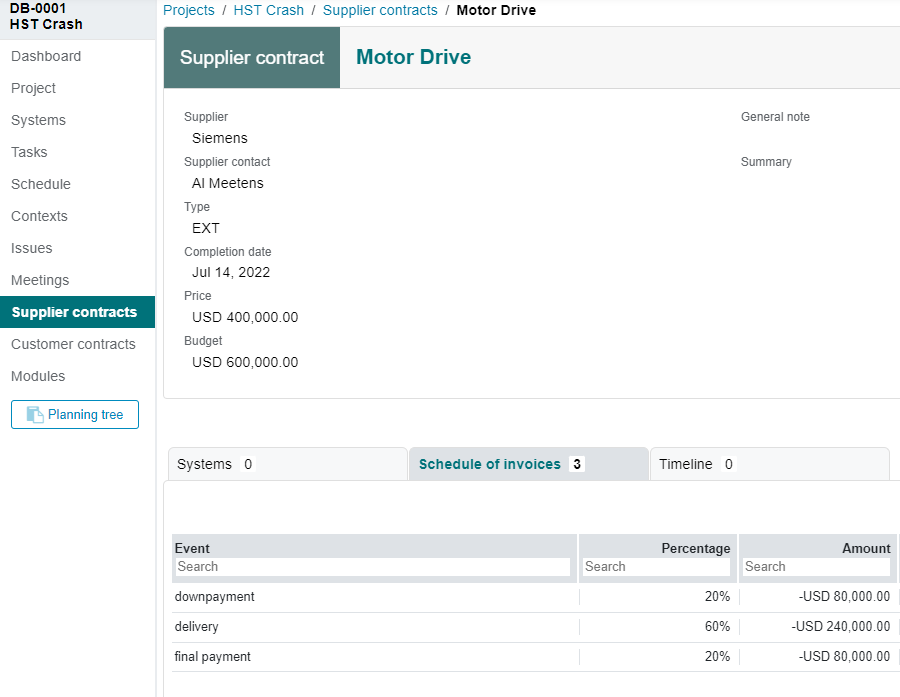
- The schedule of invoices tab is prepopulated with the default settings in the PMO settings
- Note that the invoice values are calculated from the contract value; supplier contracts show negative values while a Customer contract shows positive values.
- To link the schedule of invoices with milestones in a schedule, refer to: Syncing ON with OFF-Schedule
¶ Approval Process
There are two steps for the approval process:
¶ step 1: Approve
This is typically done by the PM, however the rights fir this step are governed by the role permissions
the PM essentially certifies that, from a project management point of view, the contract is “set to go”
the approval can be cancelled by the PM
¶ step 2: Finalize
This is also governed by the role permissions table.
Typically the PMO has approval authority. The PMO would normally circulate the contract for legal, financial, etc. advice
After a contract is finalized, it cannot be cancelled. It can be revised only via a new revision number. (the initial document is revision 0.)
¶ Contract Revisions
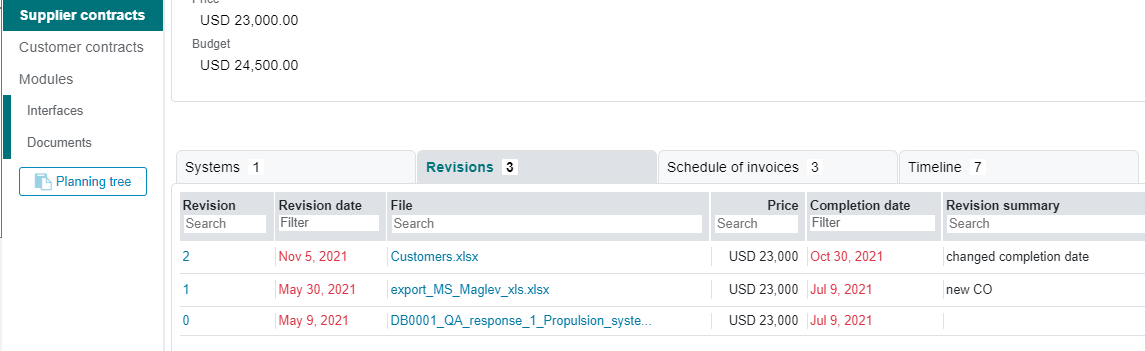
Upon approval, the detail contract page has one tab added:
¶ Contract Revisions Timeline
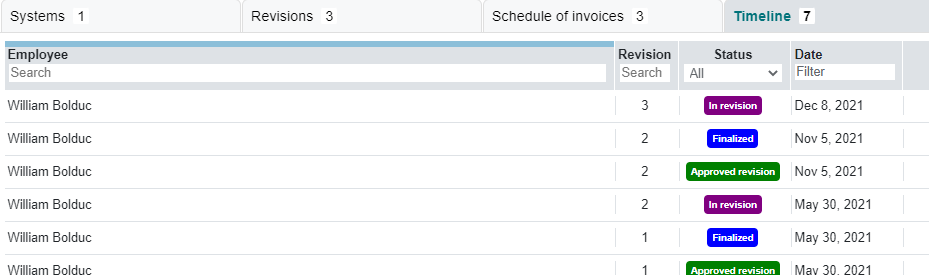
Project Contexts keeps track of the changes to the contract document:
¶ Save as a document
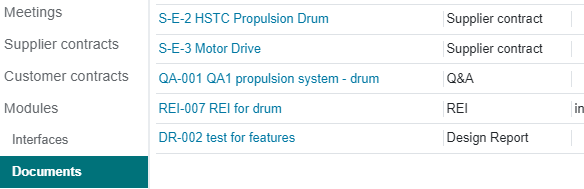
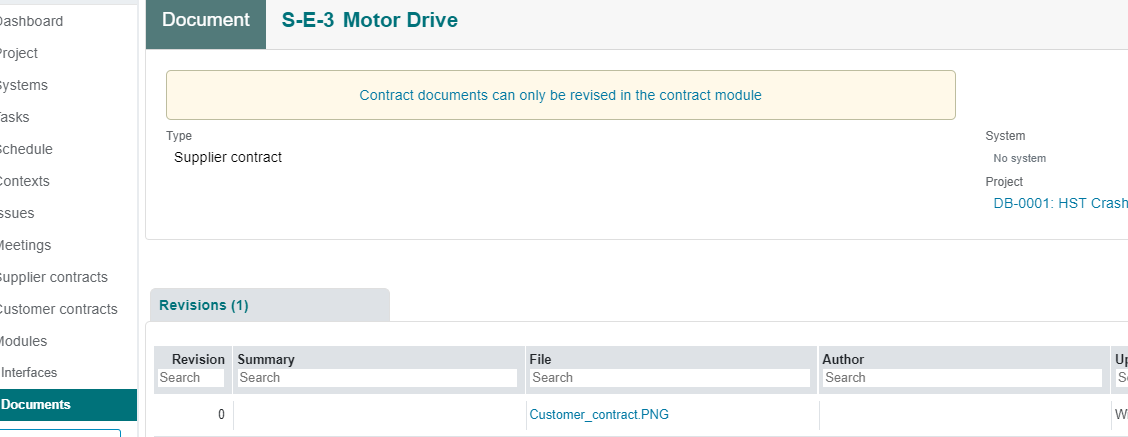
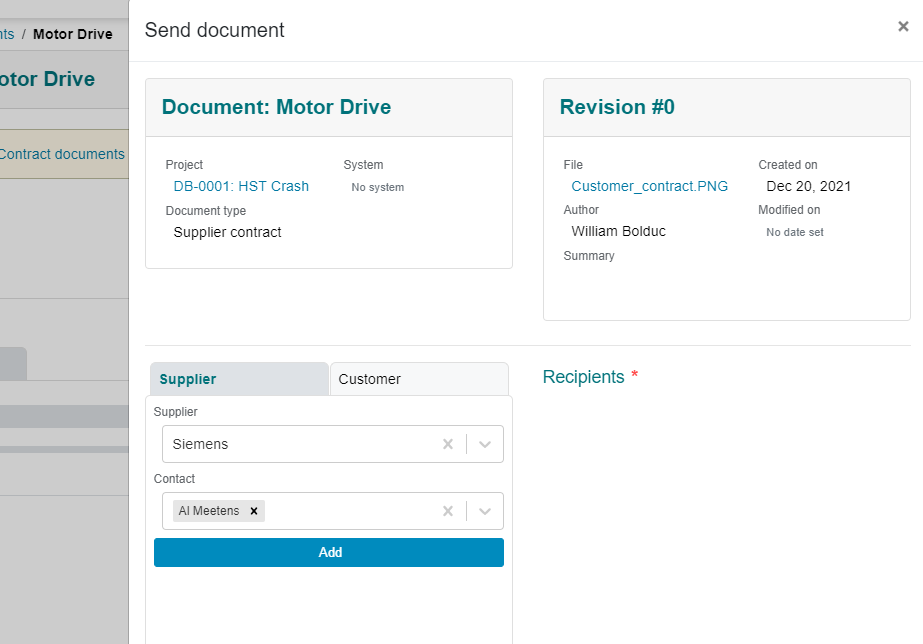
Upon finalizing a contract, it is copied into the document module from where it can be sent out. see table below - S-E-3