¶ Overview: Change Management
ProjectContexts focuses mainly on projects where deliveries are generally well defined in terms of scope, schedule, and cost. In other words, contracts that typically are governed by a Customer Contract that defines all those parameters. In some cases, the Company is its own Customer. in such a case, it could apply those same but self-imposed constraints for an internal R&D project.
At ProjectContexts, we do not really focus on the labels for the methodology that we use. In most cases within our focus, we can plan ahead of a contract, define systems and tasks, and those we then tie together into a Gantt chart.
However, other tasks are the result of circumstances that had not been planned. In a Gantt chart, we would exclude individual tasks from a schedule until the outcome or an agreed-upon resolution is well defined. And the corresponding Change Management during the period (where we (still) do not have a resolution), follows a methodology that we simply call Contexts methodology.
¶ Note
At ProjectContexts we include the updating of the project schedule as part of Change Management as well, both types of changes go hand in hand. The latter change is described in Schedule Update and Progress Evaluation.
¶ The concept of Contexts and Context Types
Context: “the circumstances that form the setting for an event, statement, or idea, and in terms of which it can be fully understood and assessed.”
[Oxford English Dictionary]
The concept embodies the ProjectContexts philosophy of team member engagement, ownership, and systems.
It also reflects the true and tried paper and pencil, word, and excel methods of to-do lists, flowing from Project Manager meetings where issues and action items (with “volunteers”) and due dates were and still are being used. Essentially, a Context can be seen as an expanded To-Do list that includes the background to it.
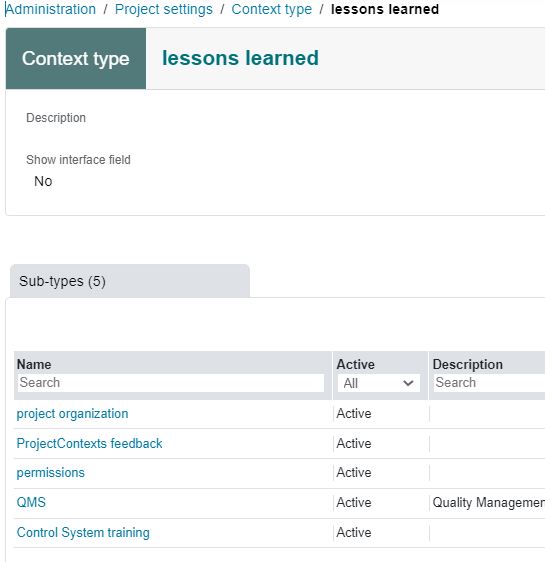
Context types are placeholders to which contexts of similar nature can be channeled.
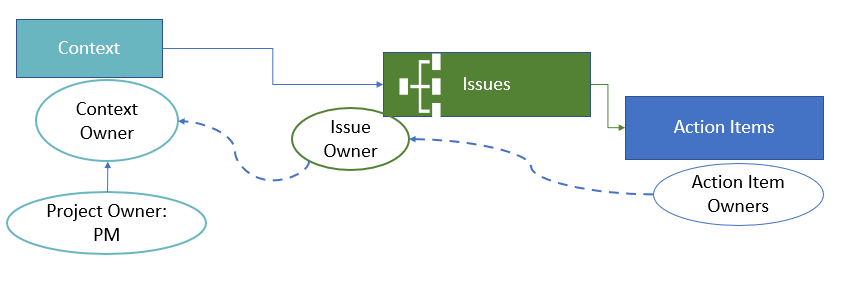
Contexts result in issues, which in turn consist of action items.
Importantly, Contexts can be assessed in a portfolio environment, allowing for example "Lessons Learned" to be available across past and present projects.
¶ The Concept of Contexts for strategic purposes
Concepts allow the tracking of strategic concepts, such as Lessons Learned, Project Risks, etc.
¶ Dynamic Hierarchies in the Contexts environment
Similar to dynamic hierarchies in the Systems / Task environment, dynamic hierarchies are also present in the Contexts environment.
¶ Add a Context
Click on the top right button to add a new context.

By default, the team member that adds a new Context becomes the default Context Owner. This can be edited by the Project Manager.
¶ Issues
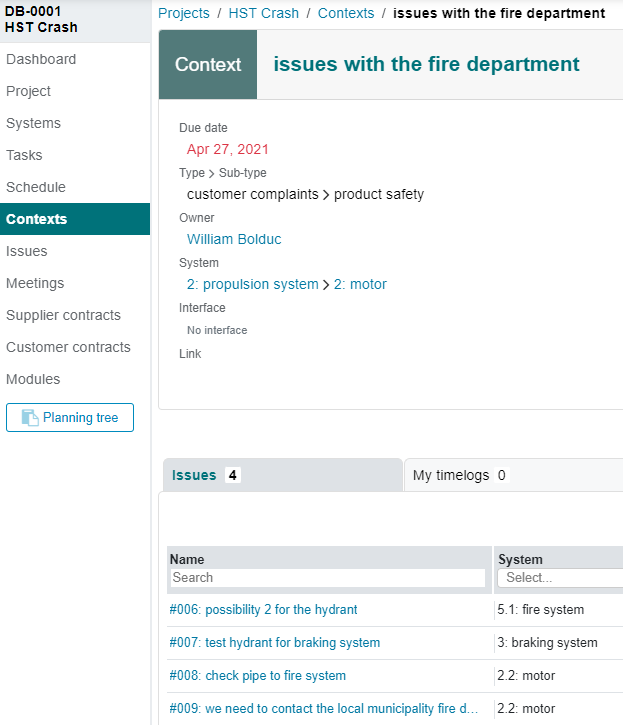
One or more Issues can be added to a Context from the Issues menu or from the Context menu.
Issues can be moved between Contexts.
The Issue Owner is designated by the Context Owner.
¶ Issues without a context
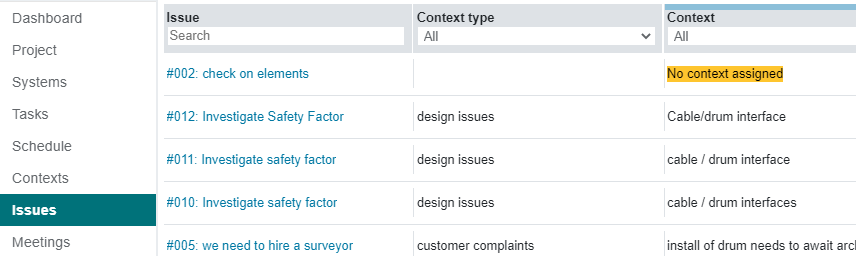
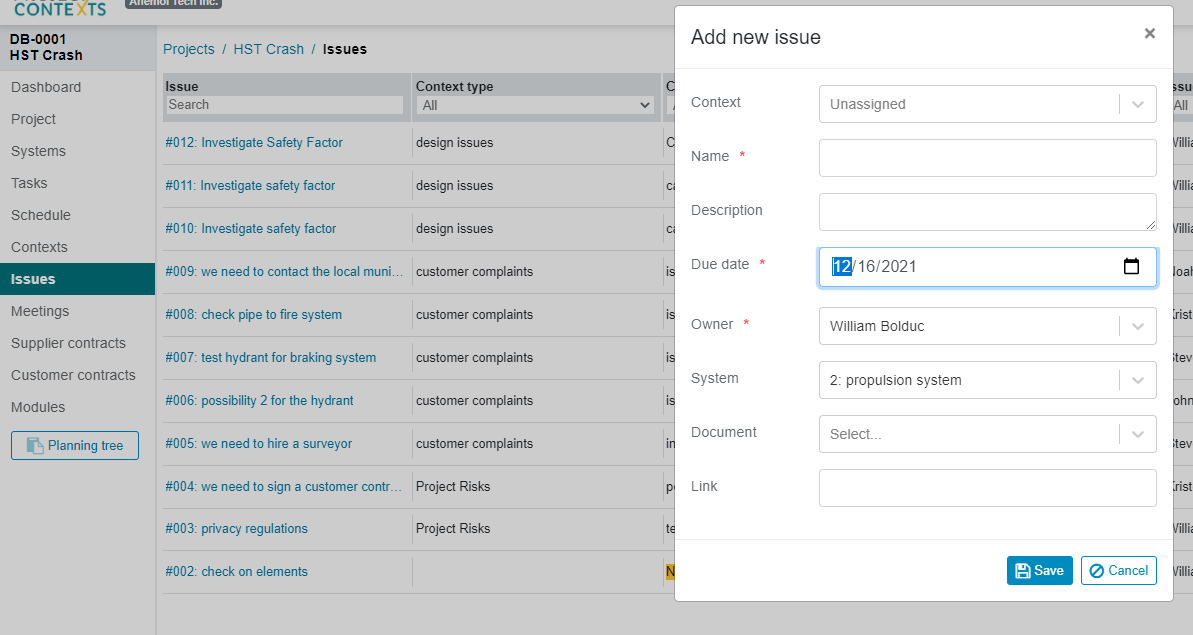
From the Issue table only, any team member can add an issue without an associated Context. That table then acts like an issues-placeholder until someone moves it to a Context. (by an existing Context Owner or the Project Manager).
¶ Add Issue from the Contexts table
¶ Request a meeting
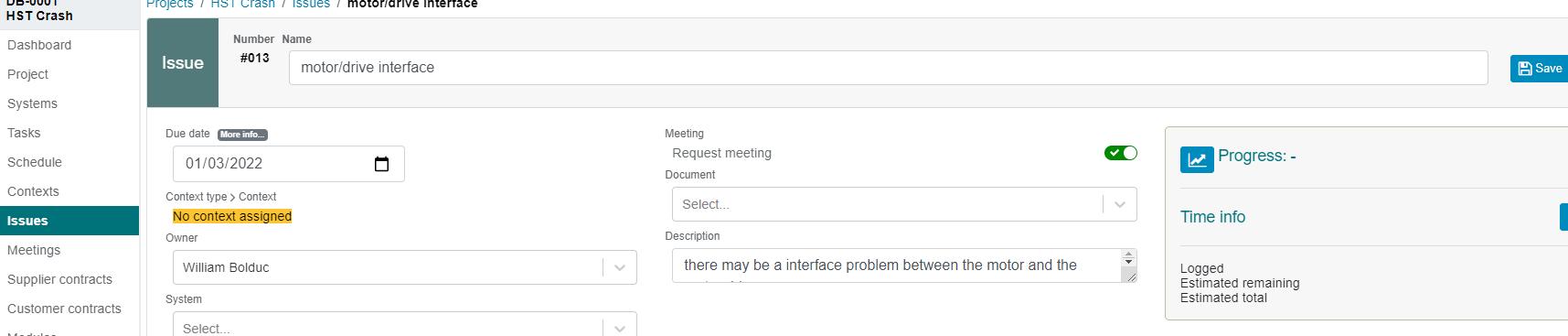
The detail issue page allows the Issue Owner to request a meeting simply by clicking the checkbox ON
¶ Action Items
¶ Add Issue from the Issues Table
¶ Add Action Item from within an Issue
One or more action items can be added to a specific system. (only if the Issue is inside a Context). The Issue Owner selects the Action Item Owner. Both the Context Owner and the Project Manager.
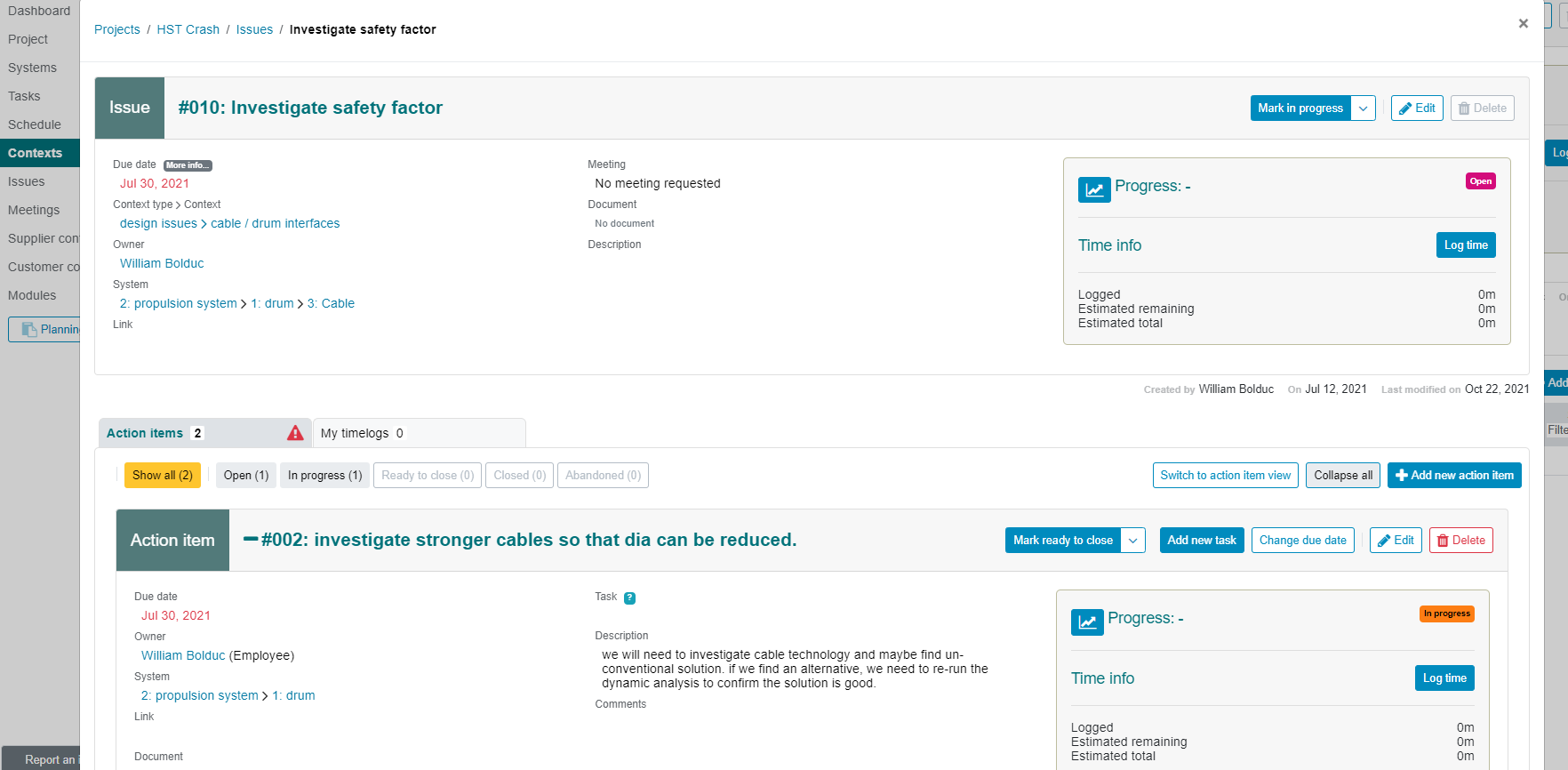
The action item has a place to add a comment after an action item has “started” (when someone logs time into it).
Dependent on the Owner's permissions, the Action Item Owner may or not have permission to close an action item or transfer it to a Gantt chart.
¶ Due Date
The Context Owner can add a due date which propagates to the Issues as a default only.
The same applies to Issues and Action Items.
¶ Add Designated Systems
In all of the steps above, the User can associate one system to each of the elements ( issues and action items).
A Context Owner can add a system ( it could be the Project itself, especially if there is more than one relevant system). The selection becomes a default selection for the system defined in an issue.
The Issue Owner's designated system propagates to the Action Items as default values.
Ultimately the Action Item Owner can edit the Action Item Owner's system.
¶ Completion of an Action Item
There are three options at the completion of a resolution for an Action Item.
¶ 1. Close the Action Item
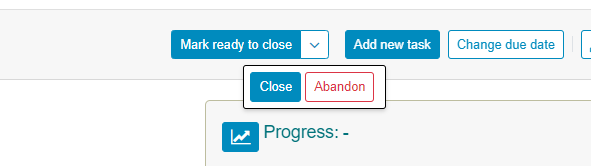
- Click on “Mark ready to close”. The reference to “ready” means that, if the Action Item Owner does not have the requisite permission, the Issue Owner is notified (automatically) to activate.
- Abandon means that no further action is required and the Action item is judged not too relevant (anymore): it is discarded.
- Close: the objective of the Action Item has been achieved and no further action or log time is required.
¶ 2. Add new Task: Transfer Action Item to a Task in the Gantt chart ("A-Task")
The premise of ProjectContexts is that s Schedule should only “accept” tasks that are fully defined in scope and objectives.
At this point in time, the Action Item has been promoted to that status. It takes one click of a button to transfer the Action Item to Task in a Gantt schedule.
Because the Action Item is associated with a system, the new task locates precisely where it belongs in the schedule so that the User does not have to look for it. To differentiate such a task, it is called an A-Task.

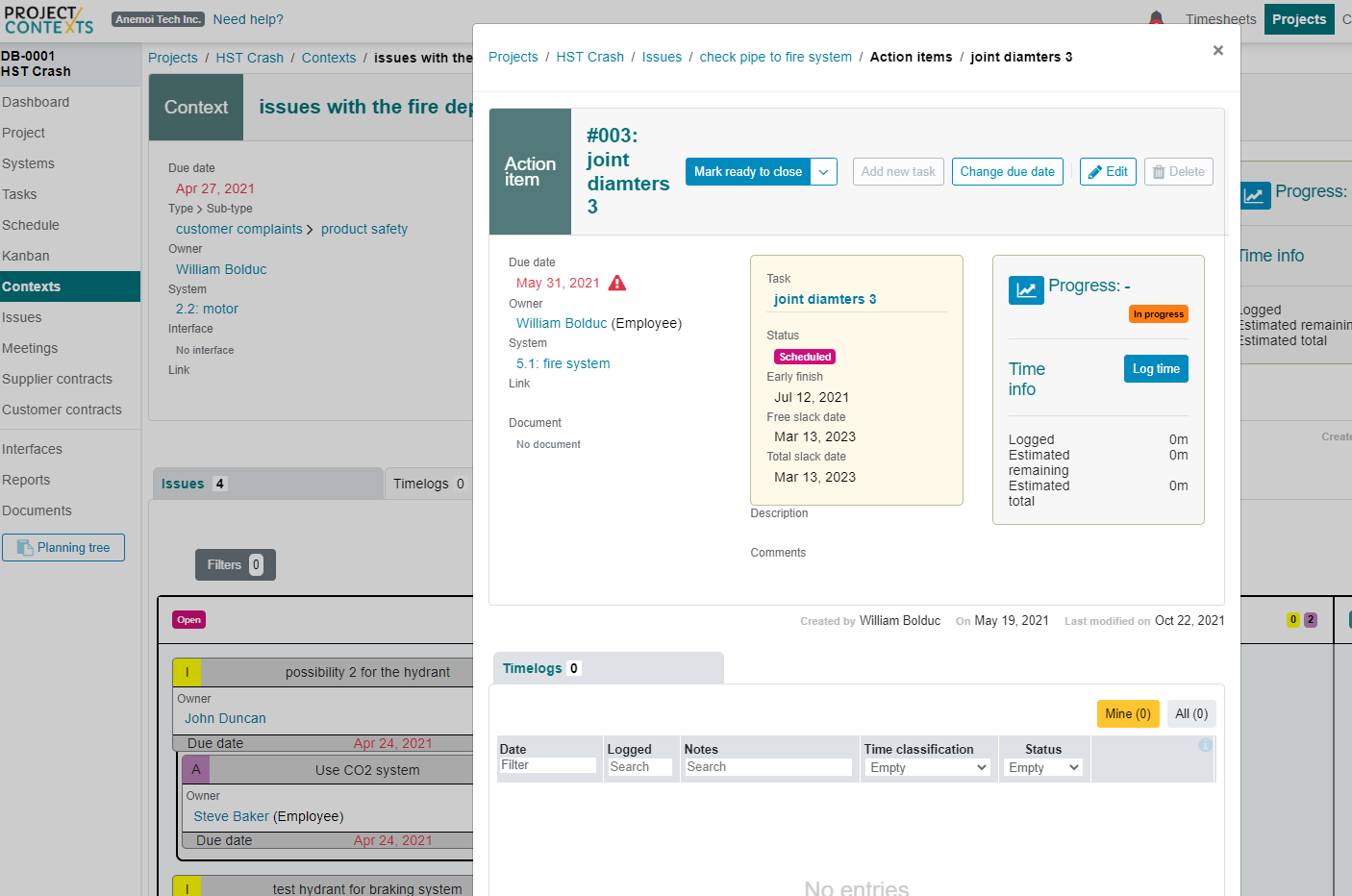
Click on the task to view a detail of the A-Task:
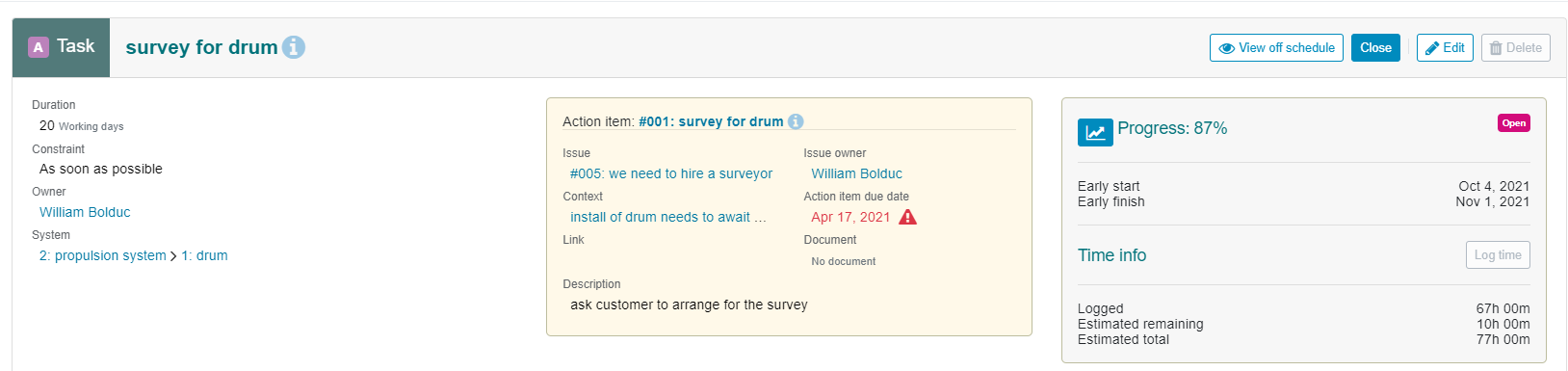
Note that the additional box provides all the links to the associated issues and contexts. In addition, after relationships are added it provides a warning and notification if the new early finish calculated in Gantt is later than the Action Item due date (showing the red warning triangle).

¶ Tracking progress via Kanban view
Tracking progress within a Context can be accomplished in the specific Context (Kanban) page, or in an overall Kanban view, combining all running Contexts.
¶ Context-specific Kanban
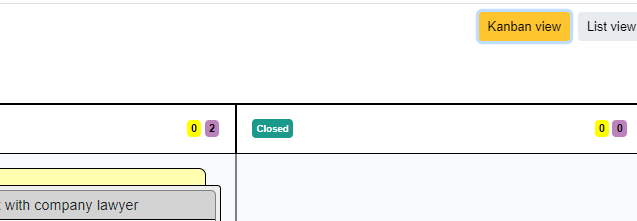
In the context-specific view, switch from an issue list to a Kanban view:
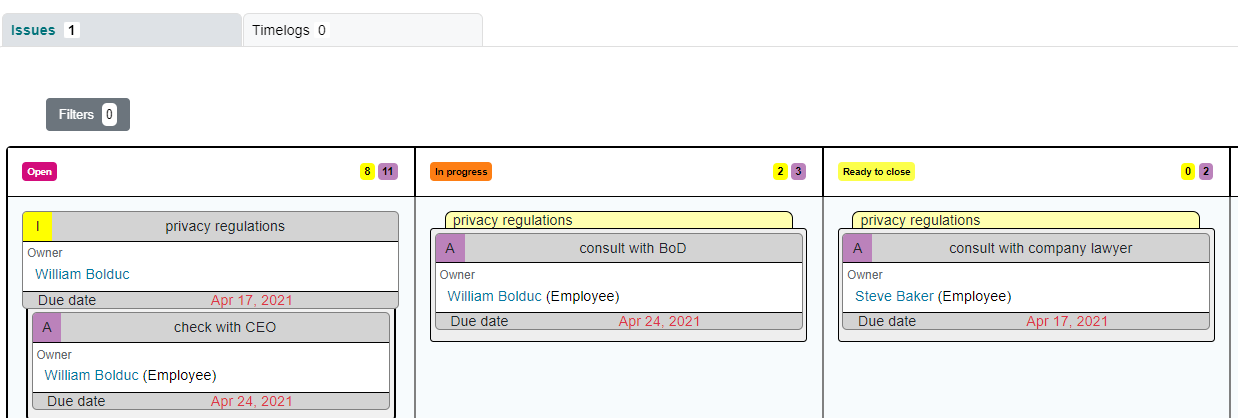
Issues and action items can be dragged from one status another. An issue is dragged automatically to in-progress with the first action item dragged to in-progress. An issue can only be dragged to "ready close" if all its underlying action items are "ready to close"
Click on an issue or action item to display the details: